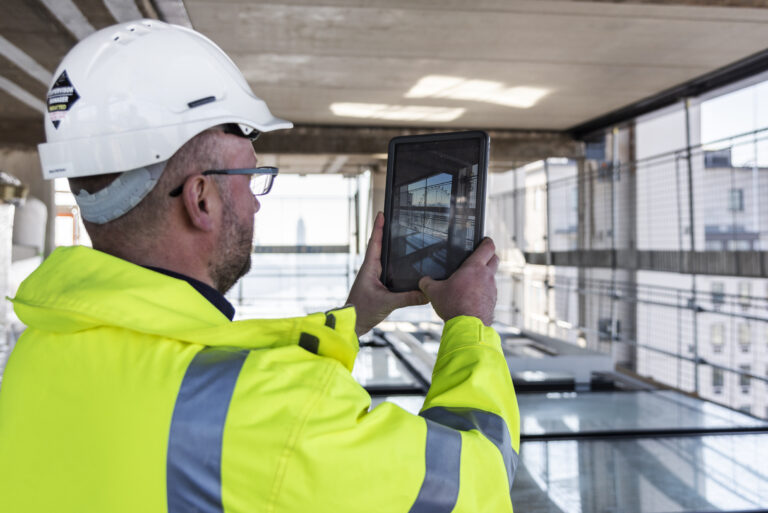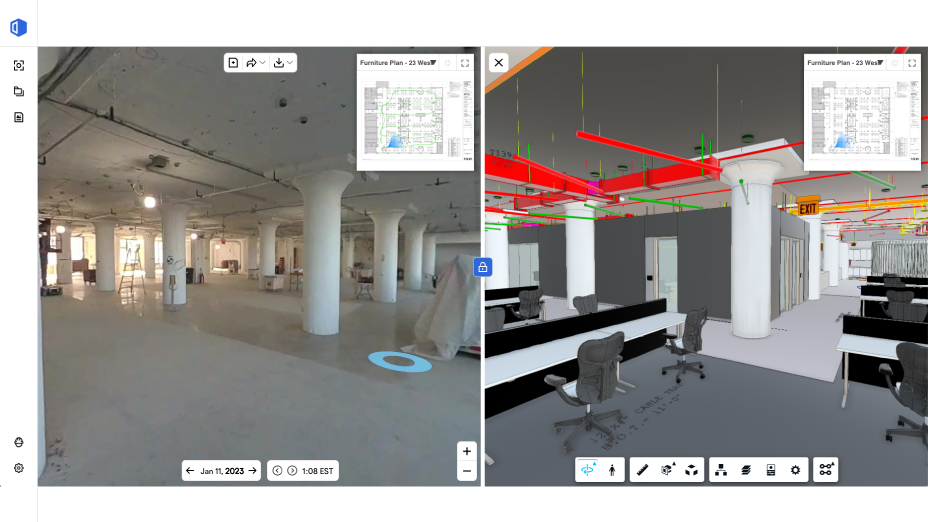
Building Information Modeling (BIM) is an intelligent 3D model-based process that gives architecture, engineering, and construction (AEC) professionals insight and tools to better manage all phases of construction. You’ll also see the acronym BIM in reference to Building Information Model—the actual 3D digital mockup of your construction project. If your projects are using BIM for more efficient building management, chances are not everyone responsible for the success of the project has access to the model. That’s where OpenSpace comes in with one of our most-used and loved product features: BIM Compare, delivering a side-by-side comparison of site conditions and your model.
“[Using BIM Compare], we were able to help the design team identify some really early potential issues. Being able to provide this information to the design team very, very early on before we were able to mobilize on-site was very valuable.”
—Breawn Felix, Regional Virtual Design & Construction Manager, Swinerton
How does OpenSpace bring BIM to the field?
By removing the modelling software from the equation. BIM Compare runs in a browser or on a phone and puts the model beside a 360° image of the same spot, so using the model requires navigating to a location rather than operating a 3D tool. The consequence is that model access stops being limited to whoever has Navisworks on their laptop.
Architects and engineers spend considerable effort and time building a model, but typically the BIM doesn’t make it to the field. Contractors and tradespeople tend to reference 2D PDFs and even build their own models for coordinating clash detection. But with our cloud-based BIM Compare, it’s simple to share and navigate the model and get the most out of it. We bring BIM coordination to the field with zero learning curve. With BIM Compare, your model is as easy to interact with as Google Street View.
Who uses BIM Compare, and what does each team get?
Two groups use it differently. Design and VDC teams use BIM Compare as a verification surface, checking installed work against the model from the office. Field teams use it as a reference surface, opening the model at their current location to plan the next task. The same view serves both because neither has to build or manipulate the model to use it.
We’ll help you get up and running quickly. You’ll upload your 3D model, OpenSpace will align your captured images to your model, and you’re ready to go—any user can begin using BIM Compare to view images of actual site conditions side-by-side with the model. Here’s a look at how different teams are benefiting from BIM Compare.
| Team | Where they work | What BIM Compare gives them |
| Design teams (VDC/BIM) | Office or remote | Full model interaction—layers on and off, snapping measurements—plus installation validation against the model to catch nonconforming materials and incomplete or improper installs |
| Field teams | On site, phone or tablet | Model access with no Navisworks-level skills—navigate to a location, click BIM Compare, and see the side-by-side view; better work planning from what the model shows is coming next |
How does BIM Compare help avoid rework?
By putting the discrepancy in front of someone while it is still cheap to fix. Because models can be re-uploaded as they change, the comparison always reflects the current design intent rather than a snapshot. The decision it most often changes is not whether to fix something, but which side to fix—move the installed work, or update the model.
As work progresses on a jobsite, you might call it the journey of work-in-place to match the design intent. With OpenSpace, you can upload updated versions of your model as needed, so your comparison of as-built to BIM is up to date. That means teams can count on BIM Compare to help avoid rework by:
- Detecting discrepancies before installations such as wall finishes.
- Quickly spotting clashes, making it easier to decide if it’s more efficient to alter the model rather than moving an installed pipe, for example.
- Making faster, more confident scheduling decisions. Clash decisions like that come up constantly on data center projects, where overhead corridors carry far more systems than a typical commercial build.
Also, you can use BIM Compare views to ensure your as-built BIM deliverable is as accurate as possible at project closeout.
Teams running aerial capture get the same closeout confidence from an orthomosaic view, a single georeferenced image they can hand to the owner alongside the model.
An accurate as-built also heads off the construction rework that surfaces much later, when a facilities crew opens a wall expecting one thing and finds another.
What does Sheet Overlay add to BIM Compare?
It puts the 2D drawing on top of the aligned model floor, so door tags, room tags, dimensions and annotations appear inside the 3D view. The value is not the overlay itself but the translation: the field reads 2D sheets every day, and Sheet Overlay lets them connect what they already know to the model without learning a new representation.
OpenSpace recently added the ability to view the sheet drawing you used to capture “overlayed” on the aligned floor of your model. So when navigating your model in BIM Compare, just click on the button to overlay sheets, and voilà!—you’ll now see all the notes from your drawing, such as door tags, room tags, dimensions, and any other annotated information.
BIM Compare already makes it easy for all project team members to understand and use BIM, and now Sheet Overlay takes adoption to the next level since users can better connect the 3D information shown in BIM Compare to the 2D drawings they look at on-site every day. For example, teams can quickly perform quality control of work installed against contract documents, helping with more precise planning. That quality control workflow is only as good as the accuracy of your captures, which is why accurate site documentation starts with knowing what to shoot and how often to shoot it.
“I think [Sheet Overlay] connects the plans to reality in a very concrete way that every team member can appreciate.”
—Phil Miller, VDC Manager, Fortis Construction, Inc.
Frequently asked questions
What model formats and sources does BIM Compare support?
Models can be imported directly from Autodesk and BIM 360 Docs, and OpenSpace BIM+ supports managing multiple models on one project so you can view only the structural model or an individual MEP model rather than the full federated model. Point clouds are supported as well.
Does BIM Compare replace clash detection in Navisworks or Revizto?
No. Clash detection between models stays in the coordination tool. BIM Compare handles the other comparison—model against what is actually built—which a model-to-model clash check cannot see. Teams typically run both, and BIM Compare can export a BCF file into whichever coordination tool the project uses.
How accurate does image-to-model alignment need to be, and who does the aligning?
OpenSpace aligns captured images to the uploaded model as part of setup, and self-serve BIM alignment lets teams make a permanent realignment adjustment themselves when a model changes. Alignment quality is what determines whether a side-by-side comparison is trustworthy, so it is worth checking after any significant model revision.
Learn more about BIM Compare
Any time saved in the field is invaluable, and BIM Compare delivers—with rapid, in-app design intent comparison. In fact, when speaking with customers, many have told us a major factor in choosing OpenSpace is our easy-to-use BIM Compare feature. Save even more time with self-serve BIM alignment—currently in Beta release, use this time-saving feature to perform a permanent model realignment adjustment (learn more here).
Watch these brief videos to see the simplicity and power of BIM Compare:
If you’re already an OpenSpace customer and would like to learn more about using BIM Compare, check out our Support articles:
Take BIM coordination to the next level with OpenSpace BIM+
Building on the capabilities of BIM Compare, OpenSpace BIM+ makes model analysis even easier. Built specifically for the field, OpenSpace BIM+ is a package of 3D tools built on top of (and just as easy to use as) OpenSpace Capture. Use these tools to:
- Unlock on-site BIM analysis: If you’re in the field using BIM Compare, you can jump to the place in the model you need to analyze by simply pulling up a Saved View. If planning work where multiple trades might be installing systems, you can overlay specific BIM elements onto 360 imagery to quickly verify work in place. It’s never been easier for those working on-site to spot potential problems and answer their own questions.
- Make BIM coordination more efficient: In BIM Compare you can mark up the view to communicate exactly what you want and send it off to the right people in a BIM Compare Field Note. And if you’re using another BIM coordination tool, it’s a snap to export a BCF file and share the information.
- View and manage your models how you want: OpenSpace BIM+ supports multiple model management plus gives you the option to import models directly from BIM 360 Docs and Autodesk Construction Cloud Build. View only the model that’s relevant, and even only the parts of the model you need, such as the structural model or individual MEP models. Now that’s efficient!
Learn more and see demos in our OpenSpace BIM+ webinar.
Ready to talk?
If you’re thinking about a reality capture solution and are ready to see how OpenSpace and features like BIM Compare and our OpenSpace BIM+ solution can help you reduce rework and save time, let’s talk.