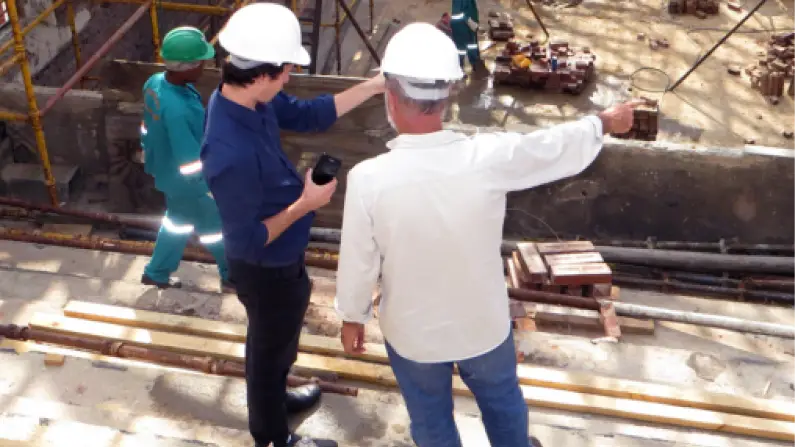
More Efficient QA/QC with 360° Reality Capture
In this eBook, we explore how several builders are successfully leveraging 360° reality capture and Field Notes to expedite and improve their quality processes, including punch lists.
Get the eBookManaging construction quality control across multiple projects can be time-consuming, and tough to track. With OpenSpace, you can simplify your quality assurance and quality control checklist process with visual documentation and real-time collaboration. Resolve issues faster. Avoid costly rework.
General contractor Nibbi improved their QA/QC processes, with OpenSpace playing a pivotal role in verifying work was carried out per the design intent.
CEC’s 10-person QA/QC team can now multitask as OpenSpace captures in the background and pins imagery to the project plan.
Learn how OpenSpace helps a leading global quick-serve restaurant maintain quality control as their portfolio of stores continues to grow.
OpenSpace allows QA/QC teams to spend more time looking at things instead of worrying about paperwork. The accuracy and completeness of the documentation puts us in a strong position to defend ourselves against project delay allegations.

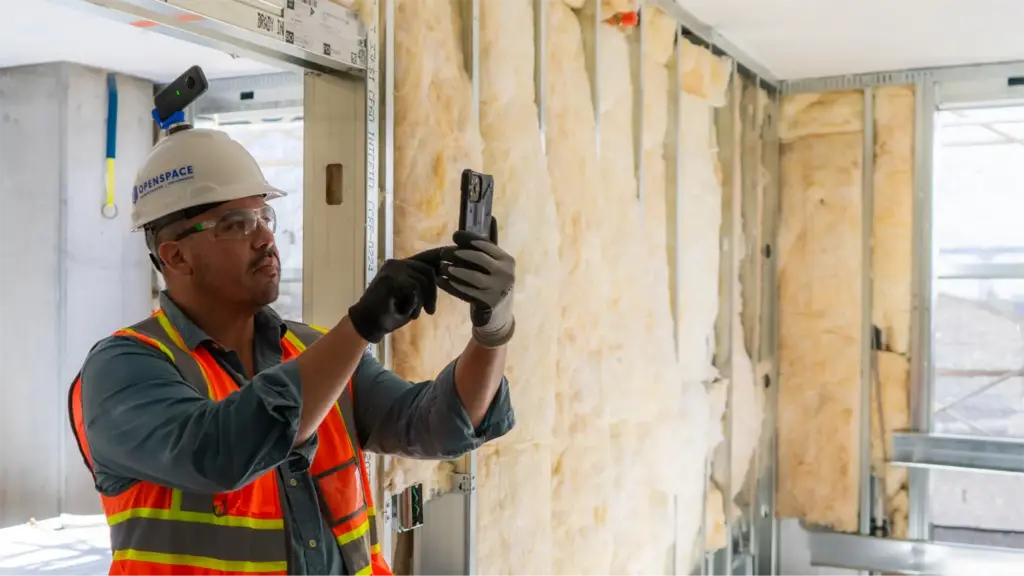
Start an OpenSpace 360° capture on-site as soon as you begin running through your construction quality control checklists. Without any extra effort, you’ve produced backup documentation—a complete visual record of everything you saw on the walk that all teams can access from anywhere. For easy reference, add a link to the capture on your checklist. Need to answer a question later or verify an item? Pull up your capture and navigate the 360° view to easily find what you need. For example, after walls have been closed up, you can use OpenSpace to verify if insulation or backing was installed in the proper location.
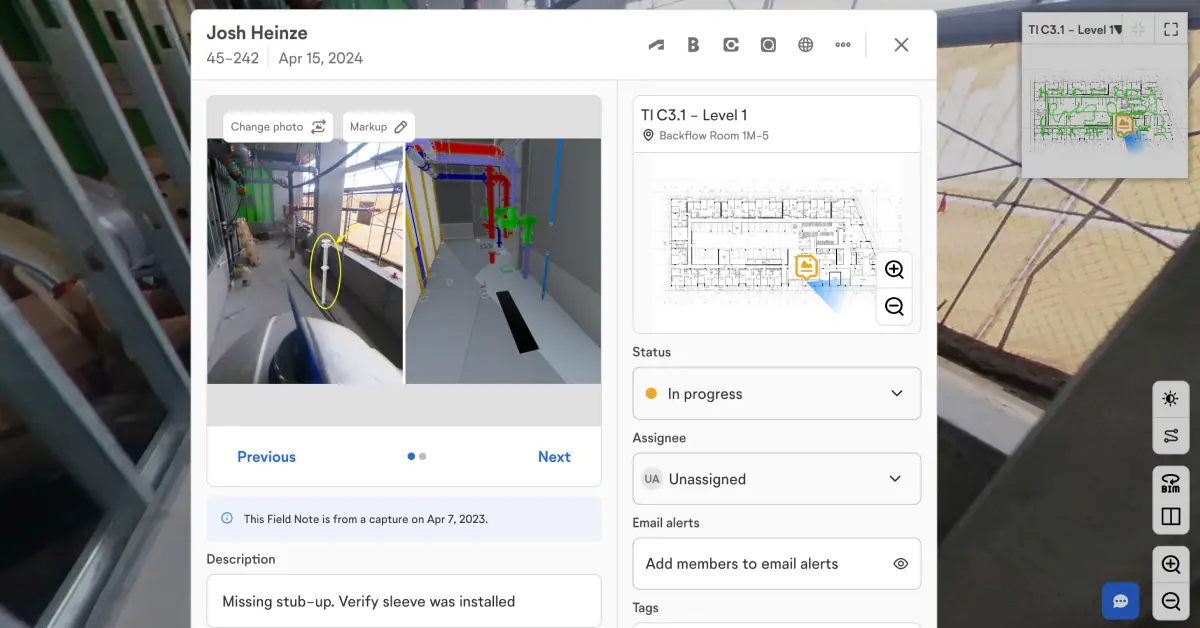
Easily create and manage quality control issues or failed items on your checklist from the jobsite. When you need to flag a correction as you’re going through your checklist, create a Field Note in the OpenSpace app. Snap a photo, then AI Autolocation suggests your position. Speak instead of typing with AI Voice Notes—we’ll take your words and fill in key details, even assigning the note to the person you identified. All you need to do is move on to the next item. After your walk, generate a Field Note PDF report, including comments and images, to share with responsible team members.
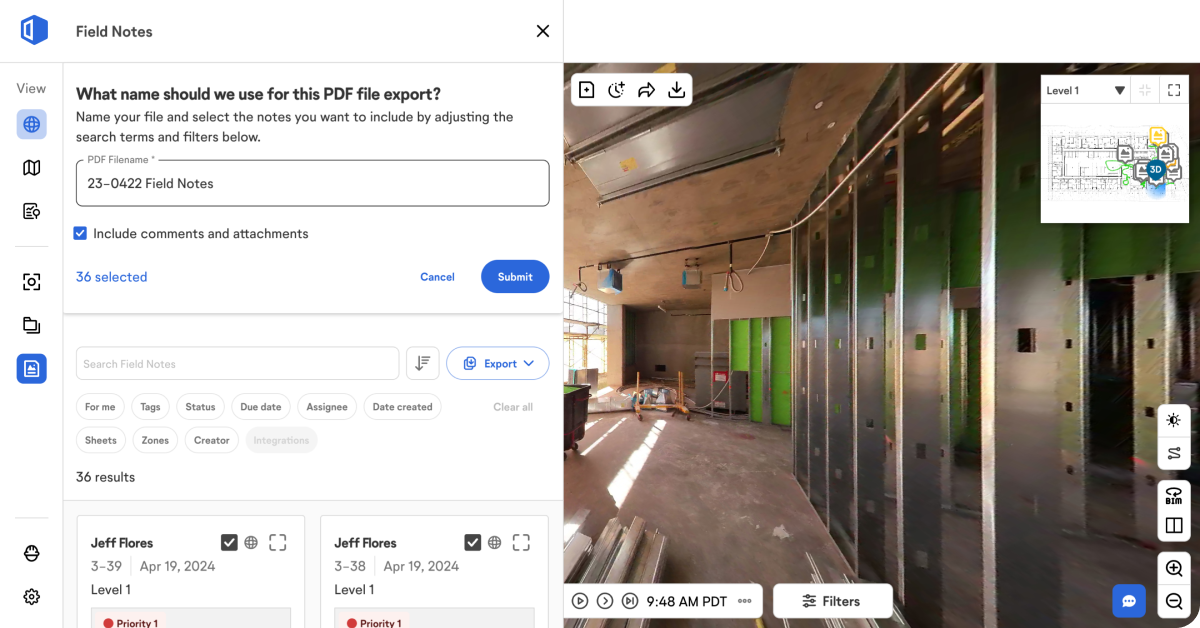
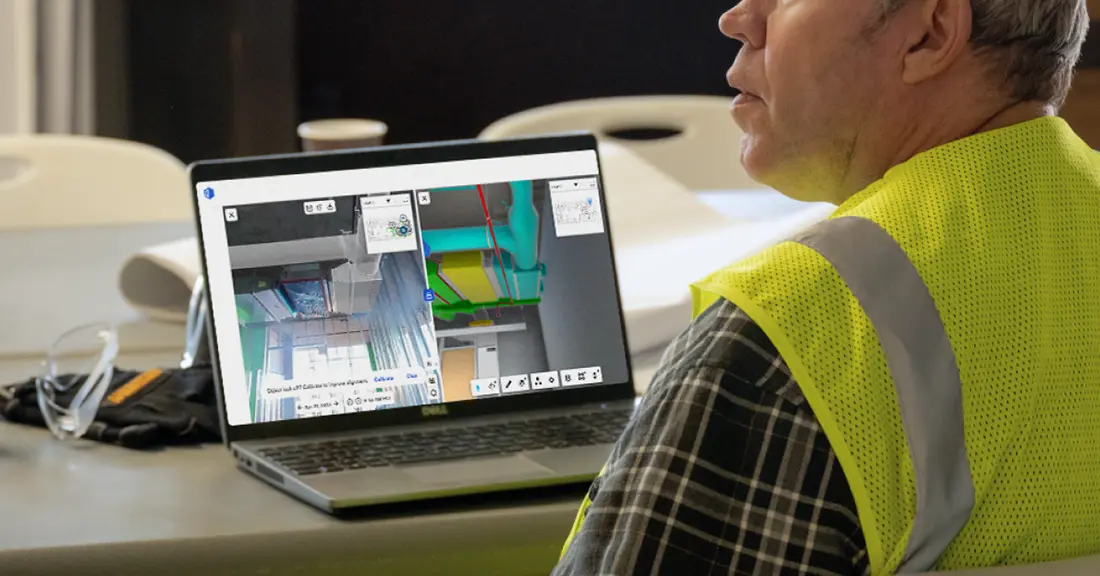
If you need to conduct a QA/QC walk for a construction project, but can’t be on-site, OpenSpace has you covered. Pull up your 360° capture from your desk and virtually walk the site as if you were at the job. As you go, it’s simple to use Field Notes to call out items that need to be addressed. You can track all communication in your Field Notes, keeping the whole project team on the same page, making it easy to check on the status of issues, all the way through resolution.
If you’re using BIM models on your project, use BIM Compare on-site or in the office for quick visual checks to verify all items are installed and in the right location. With OpenSpace BIM+, you can overlay a model element (like a sewer line) on the 360° image side of the viewer (rather than trying to visualize the overlay in your head) to inspect further.
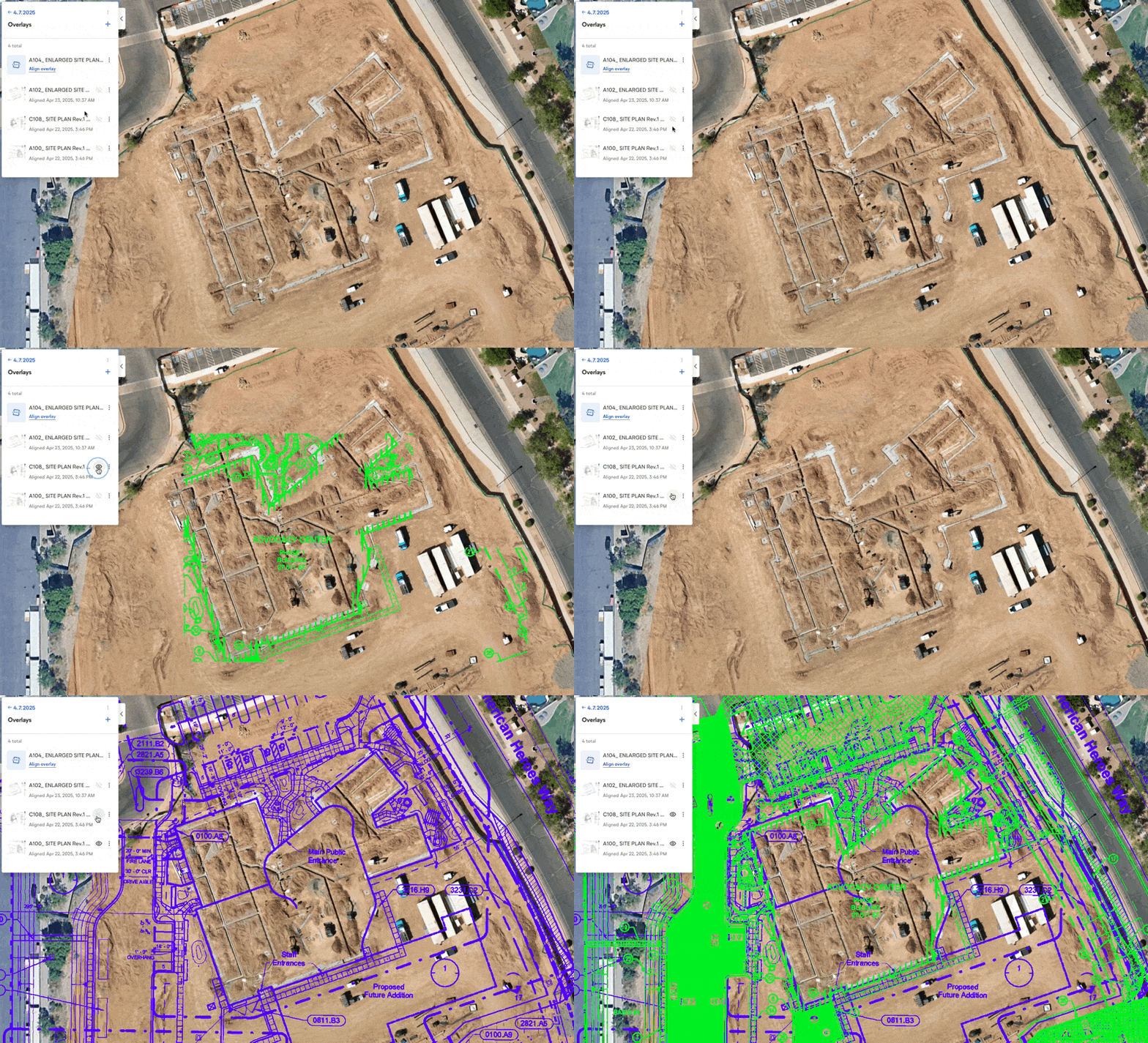
Use OpenSpace Air to bring aerial imagery into your QA/QC workflows—a fast, visual way to confirm work is progressing as planned. With overlays, you can superimpose design plans onto drone maps to spot misalignments or missing elements. Split screen comparisons let you compare up to four different time points or overlay drawings to verify installations.
Document with 360° video, 360° photo stills, plus mobile phone stills to enrich Field Notes.
Navigate your captures to find answers about an event or question and make informed decisions.
Robust visual communication for site inspections, claims, damages, and more.
Create custom labels that align with your workflows such as loss, investigation, safety, and quality. Set priority levels and more.
Label Field Notes with tags you define (e.g., damage). Tags enable smart searching and reporting.
Use Zones on your floor plans to categorize (and later find) Field Notes by room, area, or phase of work.
Run daily reports to update all teams—add comments and attachments for more detail.Label Field Notes with tags you define (e.g., damage). Tags enable smart searching and reporting.
Compare any captured area from two different dates side by side.
Navigate your captures on mobile to see how your project looks today or looked in the past.
Share a set of captures with stakeholders—even those without an OpenSpace login.
Send a URL link to share a location in your capture that you want someone to view.
Conduct drone-based QA/QC with overlays and split screen.
Compare site conditions to your model and view sheet drawings overlaid on your model.
Use a pull-down menu to view a saved visibility state of a model.
Overlay items from your model on the image side of BIM Compare for planning and QC.
Access your model on mobile devices without a network or wireless connection.
Import laser scan data into OpenSpace to compare on-site build to point clouds.
Add multiple models to a project—even break up large models to coordinate by floor or other scopes of work.
Import laser scan data into OpenSpace to compare on-site build to point clouds.
*Available in OpenSpace BIM+
**Available in OpenSpace Air
Construction quality control software helps builders manage inspections, track deficiencies, and verify work against design intent, without relying on paper checklists or disconnected tools. Platforms like OpenSpace combine 360° reality capture, Field Notes, and BIM model comparison to keep quality standards visible and accountable across every phase of a project.
OpenSpace supports construction quality assurance by giving QA/QC teams a complete visual record of site conditions tied directly to the floor plan. Teams can conduct virtual inspections, flag quality issues in Field Notes, compare site conditions against BIM models, and share findings with stakeholders, reducing the risk of costly rework and keeping projects on schedule and within budget.
Digital inspection checklists reduce the manual effort of quality management, improve accountability across the project team, improve risk management, and make it easier to resolve issues faster. When linked to a platform like OpenSpace, you can connect checklist items to a visual capture, a Field Note, or your model.
AI is increasingly used in construction quality management to automate progress tracking, surface potential problems before they escalate, and compare as-built conditions against design models at scale. The OpenSpace Spatial AI engine powers features like BIM Compare, AI Voice Notes, AI Autolocation, and progress tracking to give construction teams real-time visibility into project quality and compliance across major phases of a build.
Quality assurance (QA) refers to the processes and standards a team puts in place to prevent quality issues from occurring in the first place. Quality control (QC) is the hands-on inspection and verification work that confirms those standards are being met on the jobsite. In practice, effective construction quality management requires both. OpenSpace supports the full process from documentation and inspection through issue tracking and resolution.