We have some incredibly sharp construction professionals as clients at OpenSpace, and we wanted to start sharing their tips and learnings with current and future users. Each Power User story will be a step-by-step telling of how our most successful clients are utilizing OpenSpace features to maximize the ROI they’re getting from our 360° photo documentation technology.
Who is this Power User and what problem was he solving?
This first edition comes from a Bay Area-based Senior Project Engineer who’s working on a new office for a big-name tech client. We affectionately refer to him as “Client 1” because of how instrumental he’s been in testing beta features and giving feedback. This engineer is an avid user of our Field Notes feature, which automatically maps smartphone photos and text notes created during site walks to floorplans.
One important application he’s uncovered for Field Notes is communicating with subcontractors about debris they’re responsible for clearing from job sites. It’s helped him keep subs accountable, increase safety on job sites, and ensure that work is progressing quickly and efficiently.
Folding housekeeping into routine site walks keeps the number of separate trips down, since one capture supports the debris report and the quality review both.
Keeping walkways clear matters more than it looks, since jobsite safety statistics tie a large share of struck-by and slip-and-fall incidents back to cluttered work areas.
The 4-step workflow for tracking jobsite debris
1. Plan your capture walks to consistently document your entire site
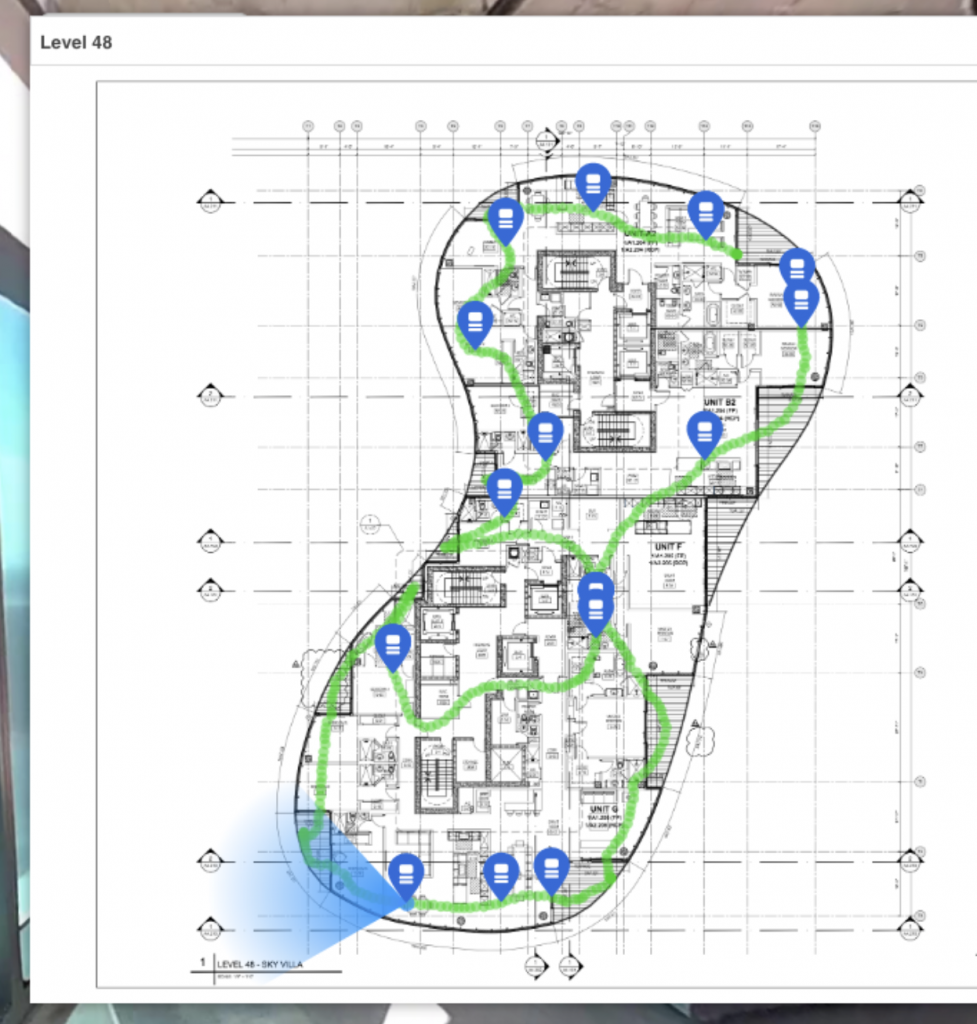
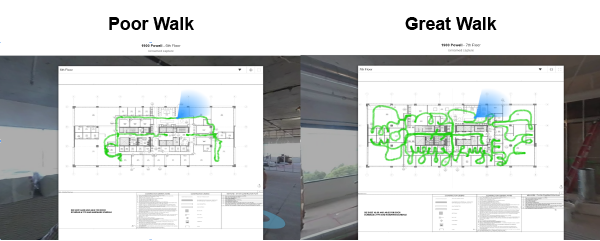
To make sure you don’t miss any debris that needs clearing, you need to consistently capture a majority of your site during every walk. That way, you can easily monitor performance via an apples-to-apples comparison of each area and quickly check to see if debris was cleared or not.
To illustrate what you should aim for, we’ve included a visualization of a poor site walk, where not much area was covered, and a great one in which every room was captured using 360° photo documentation.
2. Add subcontractor names in the comments section
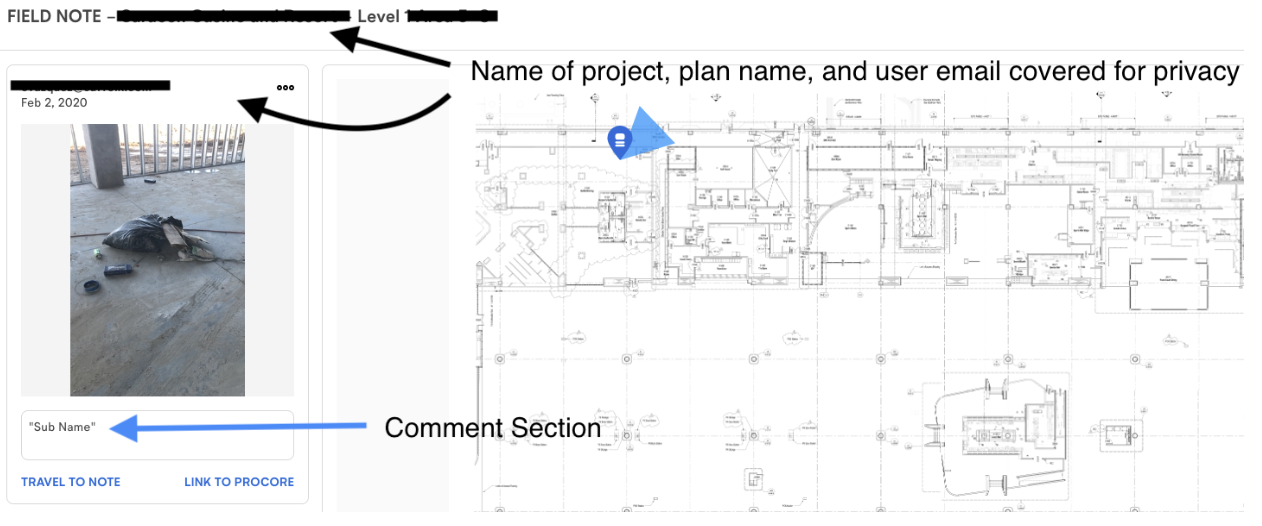
When you encounter debris while capturing 360° photo documentation, tap the “Add Field Notes” button at the bottom of the OpenSpace app. It will open your mobile device’s camera and let you snap a picture of the mess. Once you save the picture, add the name of the subcontractors responsible for cleaning it up in the comments section. Later on, when you circulate reports to subs, there will be clear documentation of the debris they’re accountable for.

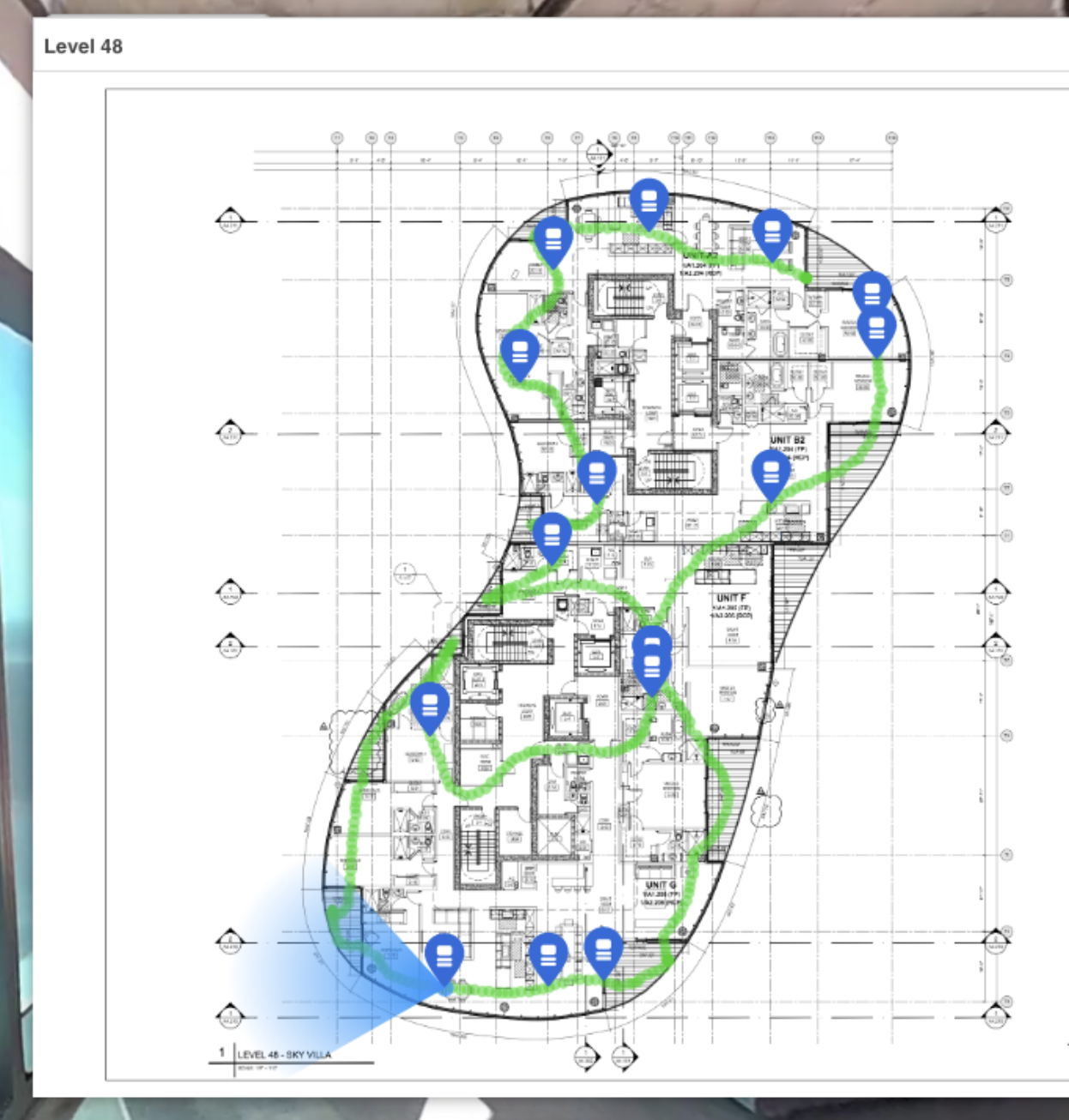
Once your capture session has been uploaded and processed, any Field Notes you’ve created will appear on your drawing as blue icons at the exact locations where they were added.
Then, when you click each Field Note, you can view the accompanying image and comment and travel to that note’s location in the capture.
3. Generate a weekly Field Notes Report and send it to subcontractors
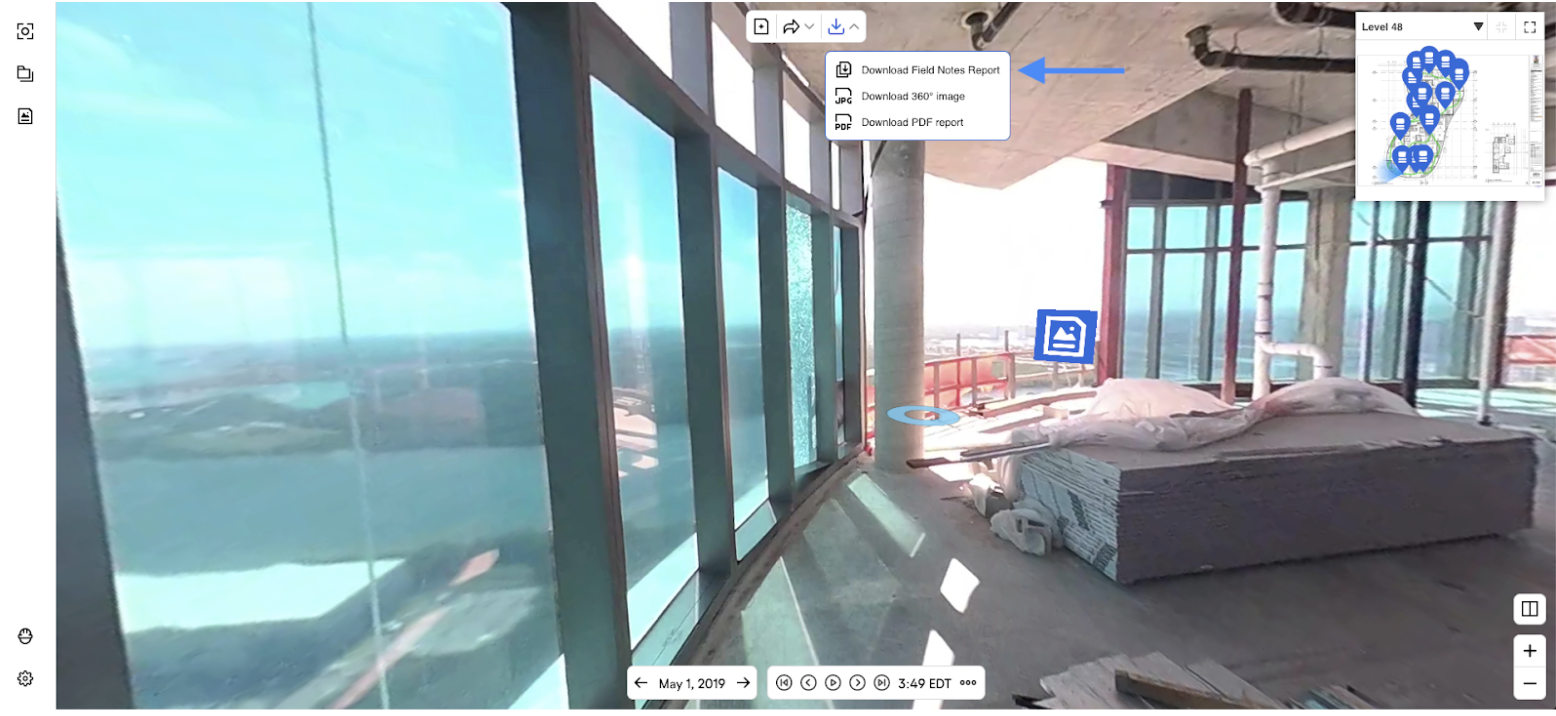
- Download the automatically generated Field Notes Report using the download button near the top of the screen
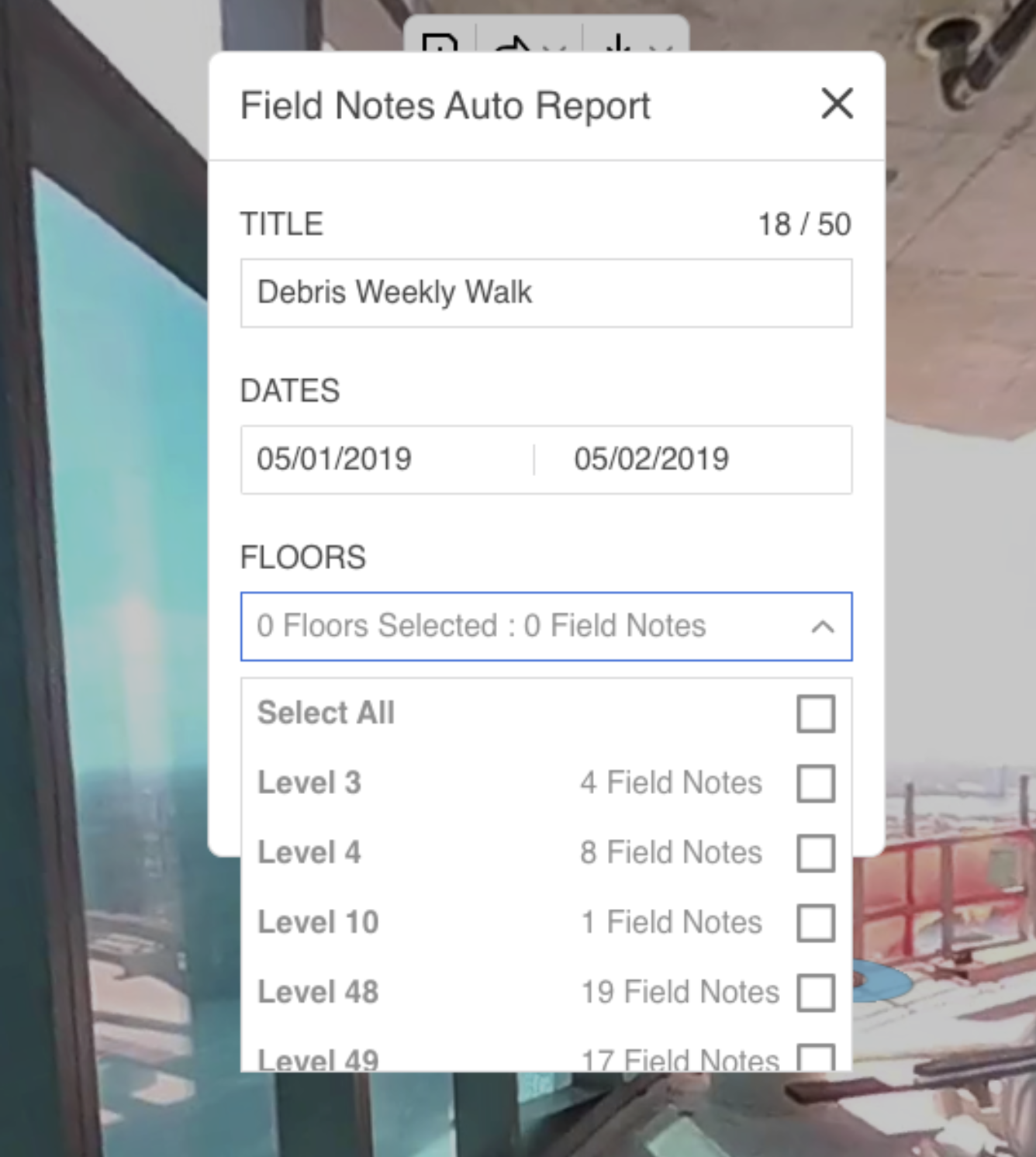
- Give the report a title, choose a date range, and select the drawing (or set of drawings) to pull Field Notes from
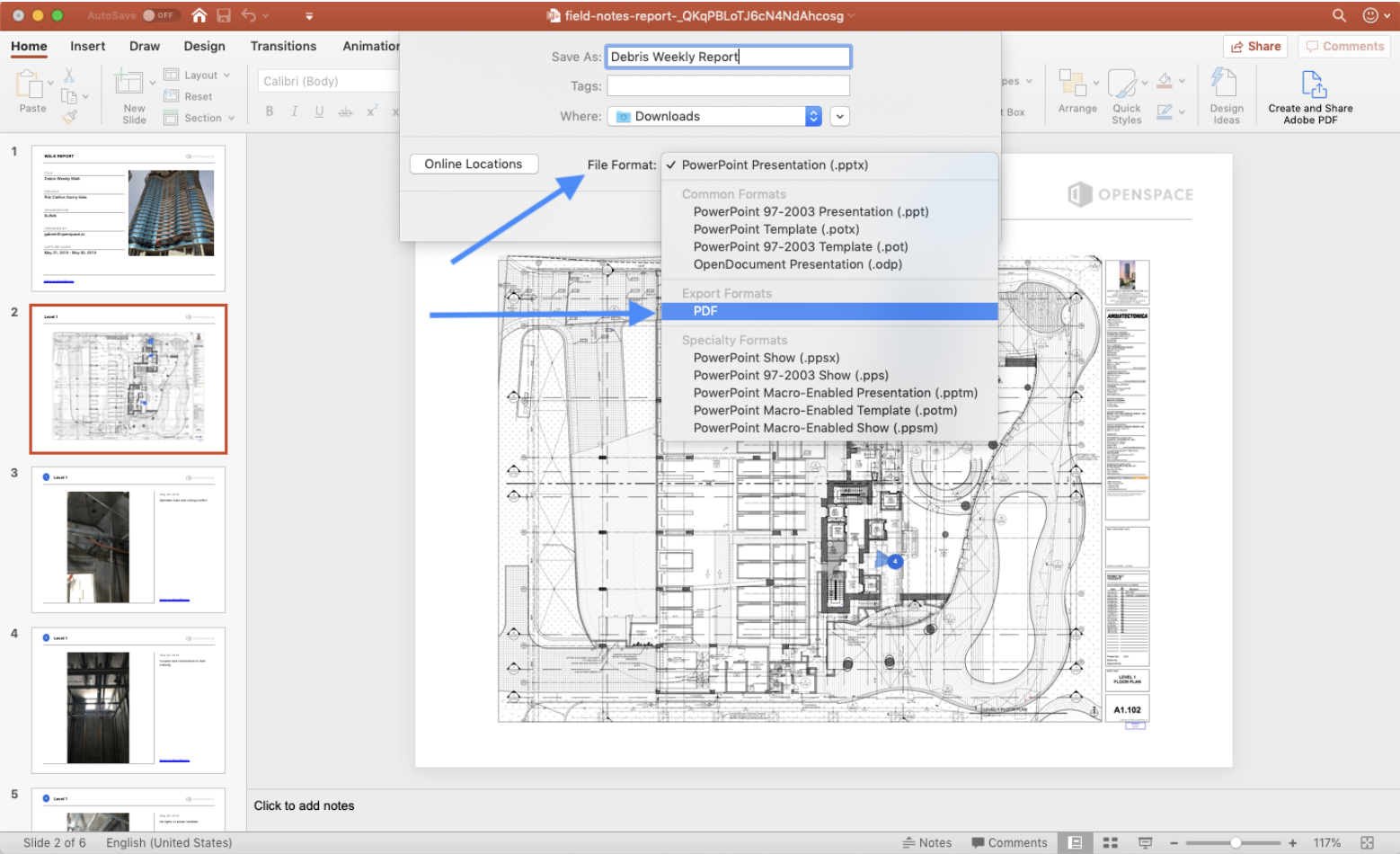
- The report downloads as a PDF: a cover page, a floorplan slide with numbered Field Note icons, then individual slides per note with the image, comment, and a link back to OpenSpace
- Save as PDF via File > Save As > File Format > PDF > Save, then send to subs or upload to your project’s drive or document manager
ONE WEEK LATER…
4. Confirm the debris has been cleared
This is where our emphasis on consistently capturing the entire plan becomes important. If you’ve been diligent about capturing 360° photo documentation of the majority of your site from week to week, you’ll be able to quickly check the status of the debris you’ve been documenting.
First, pull up your report from the previous week and click the “View in OpenSpace” link that accompanies individual Field Notes to investigate specific rooms or areas.
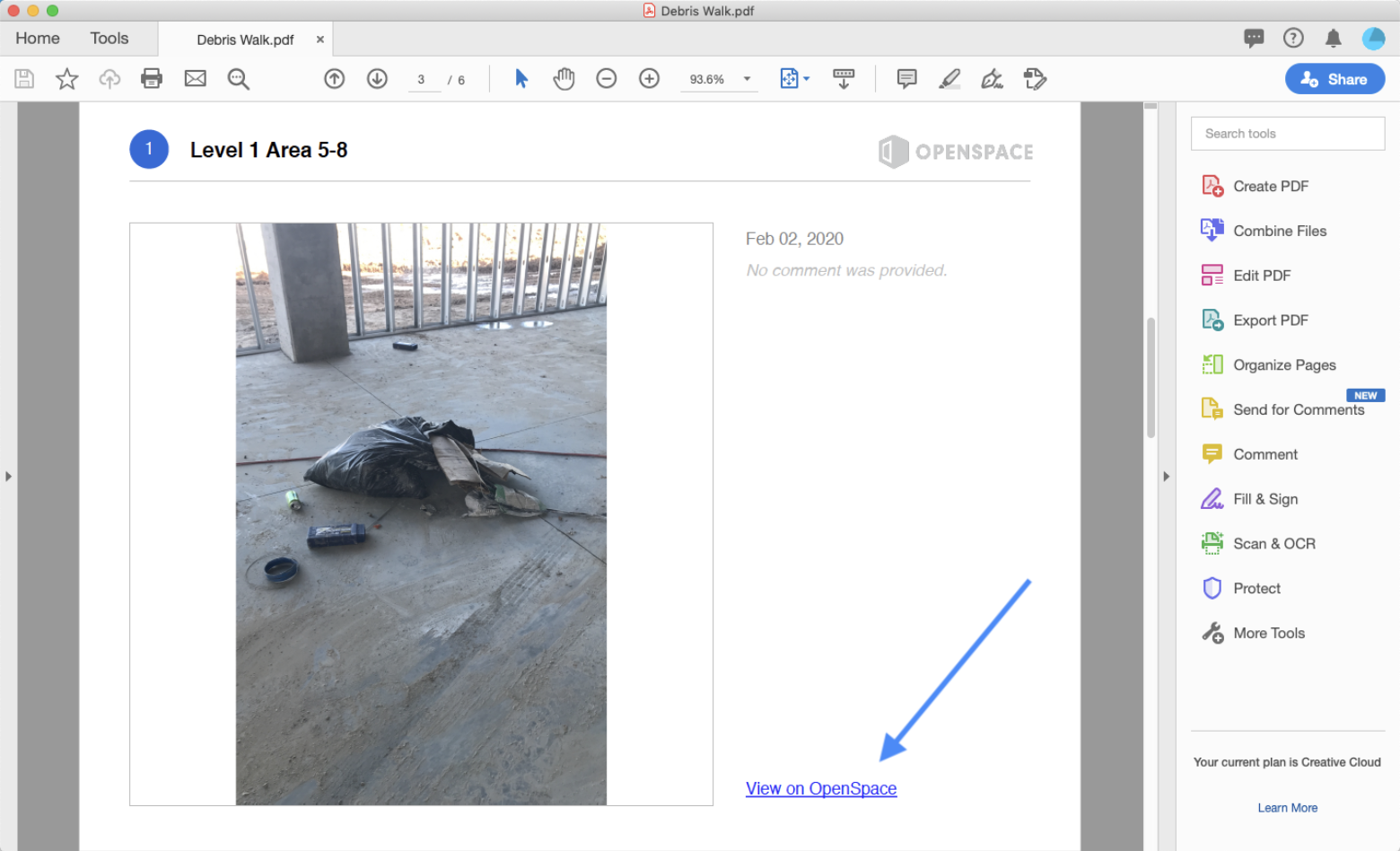
This opens the Field Note in OpenSpace, where you can use the “Fast Forward Arrow” to the right of the date to see the most current imagery from the same location. (If there aren’t more recent captures from that location, the button will be grayed out.)
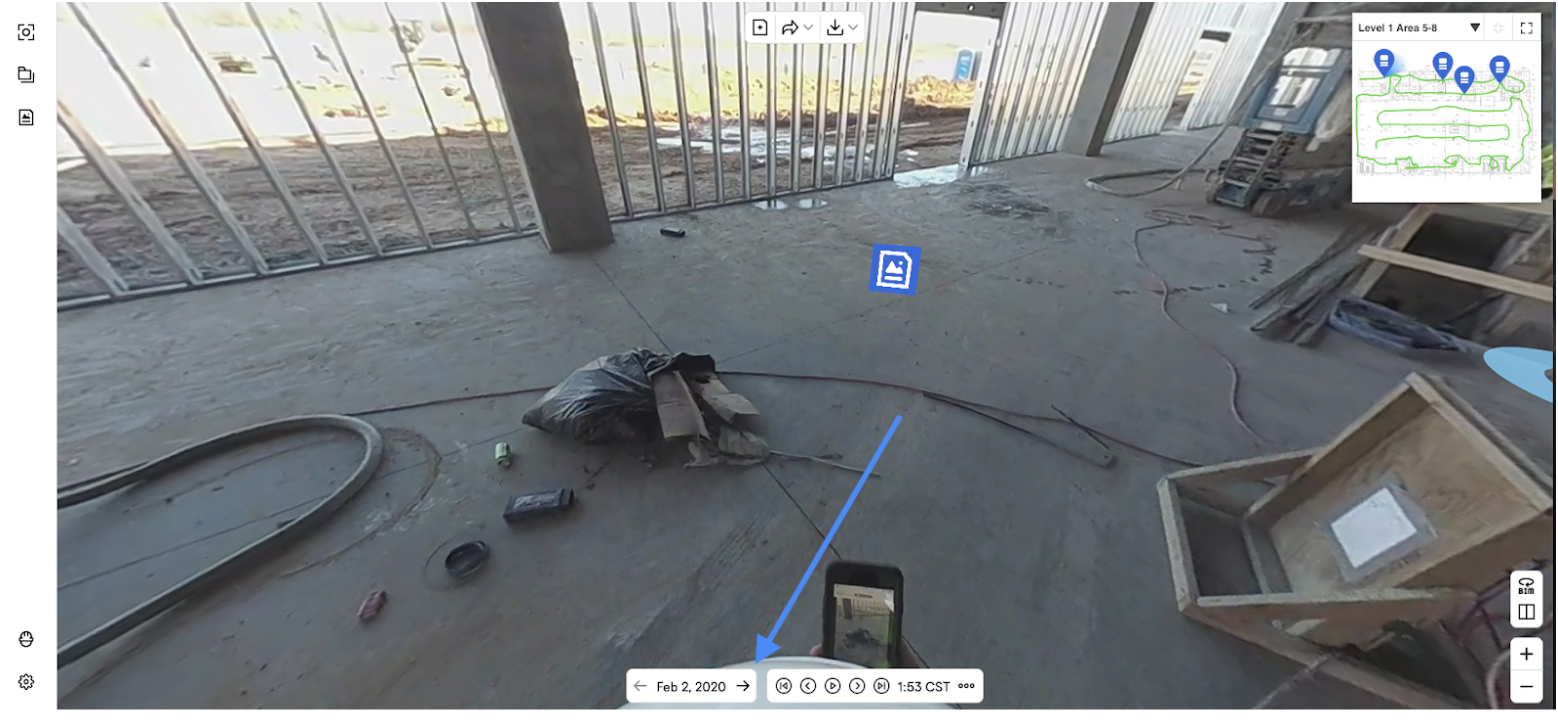
In the next capture (taken six days later in the example below), you can see that the mess is gone.
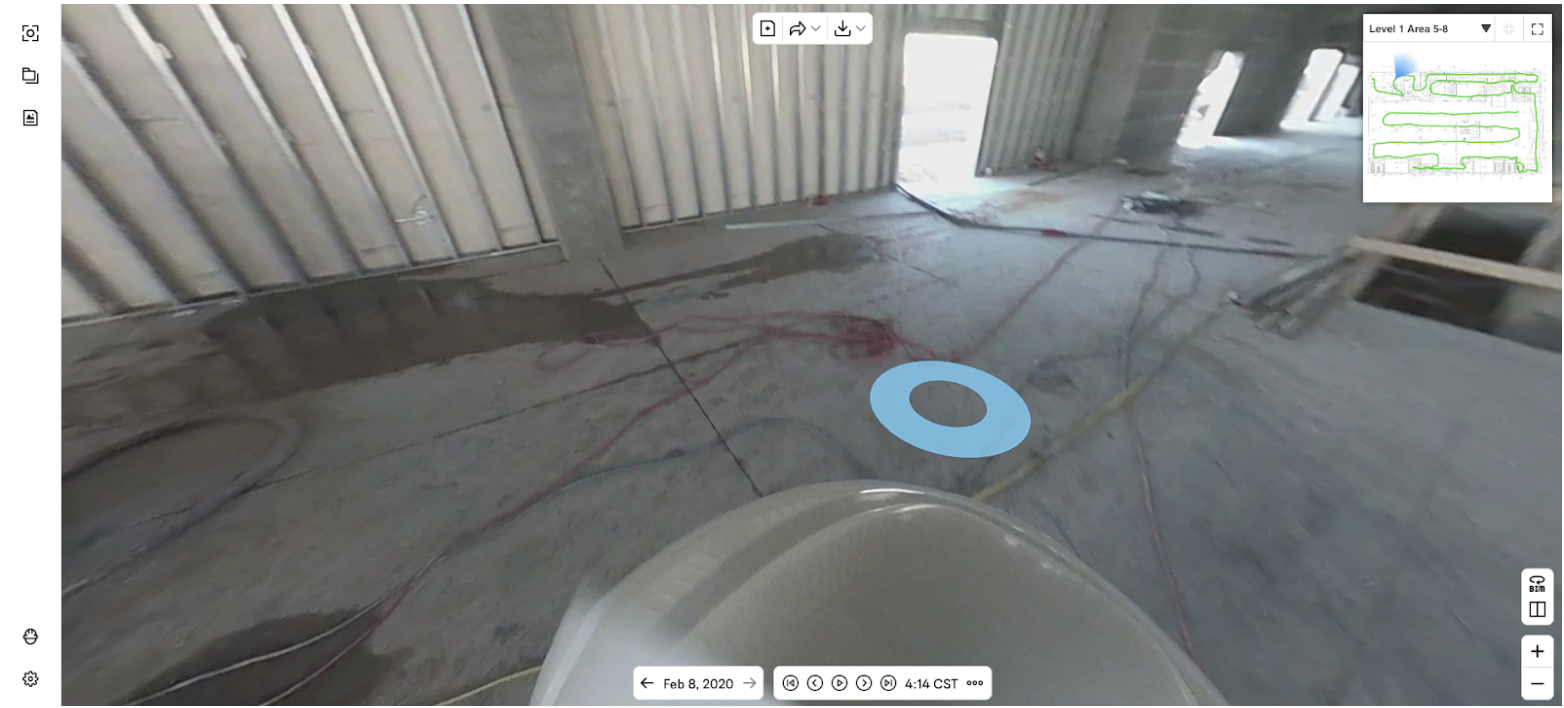
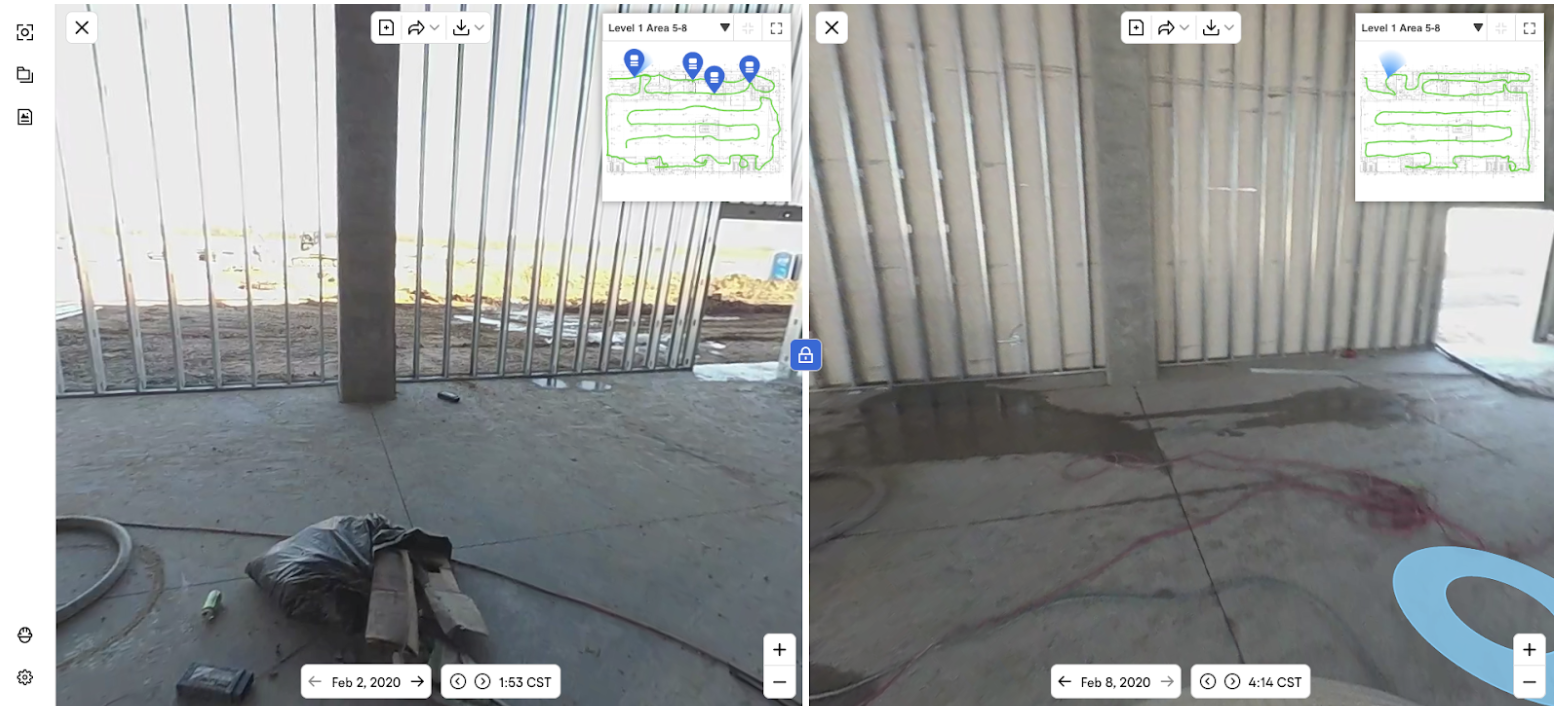
OpenSpace makes it easy to compare two dates using the arrows around the date, or by navigating to a date that’s further into the future or past using the calendar function.
If you want to compare views from two different dates, just click the “Split View” button in the bottom right of the screen.
Frequently asked questions
Can Field Notes be used for issues other than debris, like safety hazards or quality defects?
Yes—the workflow above applies to any location-specific issue a team wants to track and resolve over time, including safety hazards, quality defects, or open punch-list items, not just debris.
Do subcontractors need their own OpenSpace login to see the Field Notes assigned to them?
No—Field Notes Reports are exported as standalone PDFs, so subs can review what’s assigned to them without needing OpenSpace access themselves.
How often should a project team run a capture walk to keep this workflow effective?
Weekly is the cadence in this workflow, but the right frequency depends on how fast conditions change on a given site—the key is consistency, so week-over-week comparisons stay apples-to-apples.
What’s the result of this workflow?
OpenSpace Power Users take advantage of our 360° photo documentation technology every day to keep their job sites cleaner, safer, and more productive using this workflow and others. We love supporting our clients in search of time-saving workflows for delivering projects on time and on budget.
Reach out to OpenSpace Support if you have any questions about implementing this workflow for tracking debris on your job site.