More Efficient QA/QC with 360° Reality Capture
In this eBook, we explore how several builders are successfully leveraging 360° reality capture and Field Notes to expedite and improve their quality processes, including punch lists.
Get the eBookOpenSpace is the fastest and easiest way to create a punch list. As you walk with the owner, architect, and other project consultants, simply start a 360° video capture—from there it’s intuitive and simple to use images and Field Notes to document, report, and get things done. Plus, OpenSpace takes care of pinning your punch items to your floor plan. No need for pen, paper, or Excel.

Hear how Kurt Miller, Sr. and team at Amesbury Companies automate punch lists with Field Notes, complete with images for clear communication.
CEC’s 10-person QA/QC team uses OpenSpace Capture and Field Notes for punch lists and saves time with notes automatically pinned to the project plan.
Learn how OpenSpace helps a leading global quick-serve restaurant maintain quality control and generate punch lists as their portfolio of stores grows.
Construction professionals from around the world and across the industry meet up for our annual customer summit, Waypoint, for exclusive access to the latest product announcements from OpenSpace. The event also includes a customer panel—where power users like Kurt Miller, Sr. share specific examples of how they’re getting the most out of OpenSpace. Listen to a quick snippet here. Or, watch the Waypoint session for Kurt’s full interview, including a demonstration of how Amesbury Companies uses OpenSpace for punch lists.
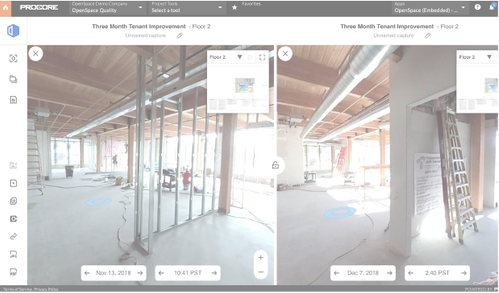
As soon as you’re ready to punch an area of your jobsite, begin an OpenSpace 360° capture. At the end of the walk, you’ll have a complete visual record of everything you saw. Later, pull up your capture and navigate the 360° view to easily find what you need to answer any questions. For example, go back in time to view previous captures to see when a scratch or other damage happened and who was working in the area.

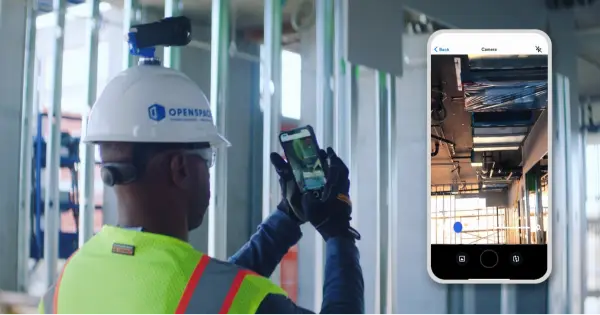
Since you’re creating a 360° video capture during your punch list walk, you can leave the hardcopy drawings in the office. Instead of trying to figure out where you are and scrambling to write corresponding punch numbers on a floor plan, simply take a photo with your mobile device anytime someone calls something out. Tap the Field Notes button in the OpenSpace app, snap a photo, add a description, include a tag, and even assign it to someone right away. OpenSpace automatically timestamps and pins all your Field Note punch items to the floor plan—that means you can quickly move on to the next item. If you’ve set up Zones on your project, OpenSpace tags each Field Note you create with the name of the Zone they’re in for easy filtering.
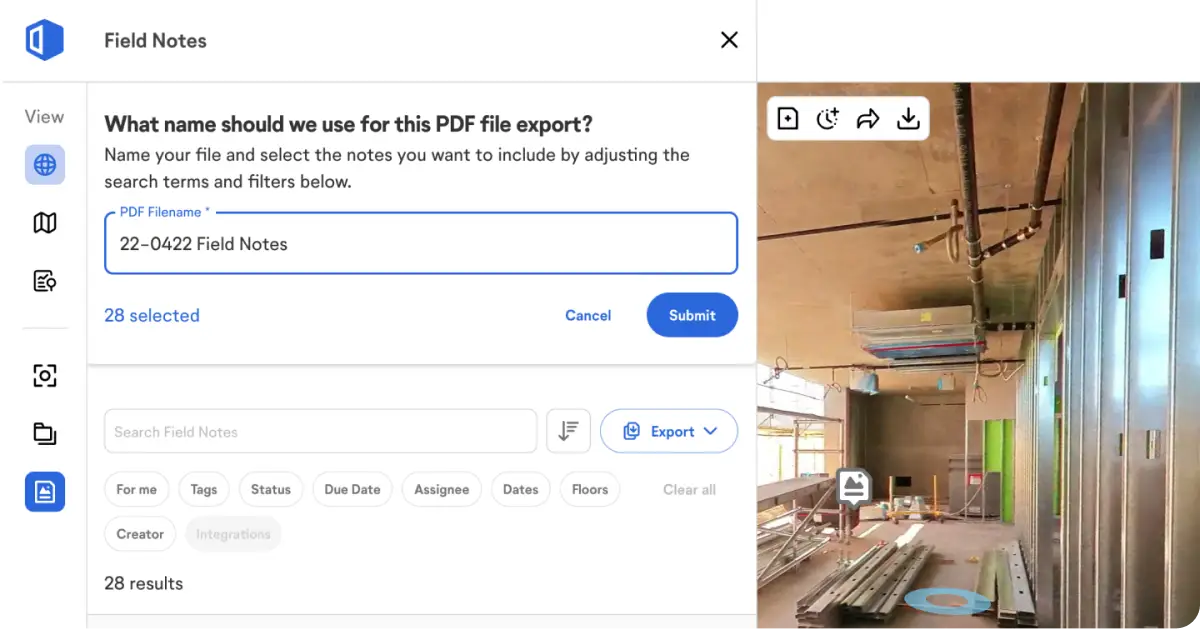
At the end of a punch walk, your process might be: Return to the office, clean up marked drawings, and translate potentially messy handwriting into a spreadsheet. Avoid that tedious work with OpenSpace. Simply tap Export to generate a Field Note PDF report of all your punch items, including comments and images, to share with the appropriate team members. And with Field Notes, you’ll be notified when punch items are taken care of—plus the person who resolved the problem can attach an after-photo to the Field Note. When you’re ready, close out your punch items at the click of a button. If you manage punch items in a system like Procore, save time by pushing your punch list Field Note items with our easy integrations.
Document with 360° video, 360° photo stills, plus mobile phone stills to enrich Field Notes.
Navigate your captures to find answers about an event or question and make informed decisions.
Robust visual communication for site inspections, claims, damages, and more.
Create custom labels that align with your workflows such as loss, investigation, safety, and quality. Set priority levels and more.
Label Field Notes with tags you define (e.g., damage). Tags enable smart searching and reporting.
Use Zones on your floor plans to categorize (and later find) Field Notes by room, area, or phase of work.
Run daily reports to update all teams—add comments and attachments for more detail.Label Field Notes with tags you define (e.g., damage). Tags enable smart searching and reporting.