From site walk to action, fast
Capture issues, punch, and observations in seconds with visual proof, location, and complete context. With Field Notes you don’t need to guess what happened after your walk. No writing things down later. No missing details. And with added functionality available in OpenSpace BIM+, you can create BIM Compare Field Notes, and push those notes to your BIM coordination programs in 3D space.
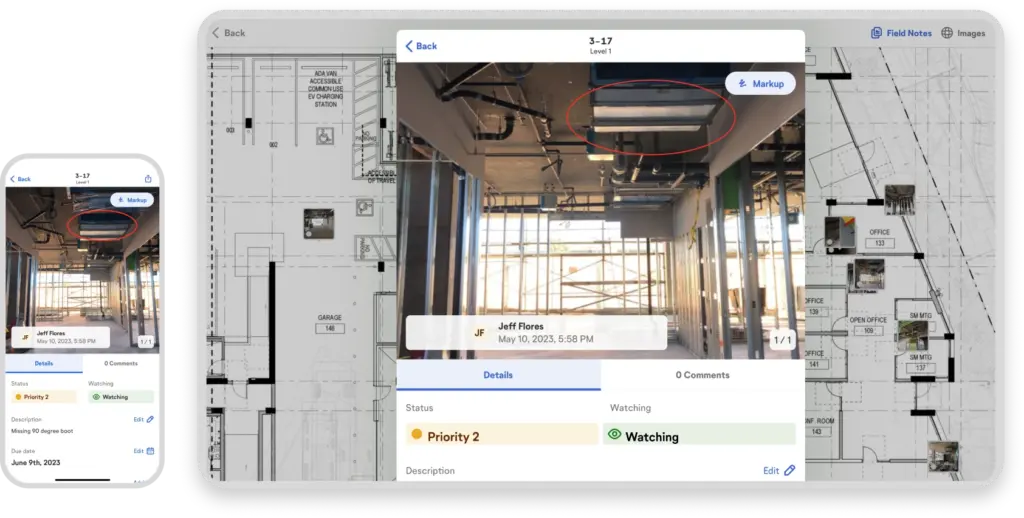
Create Field Notes how and where you want
During a 360° capture
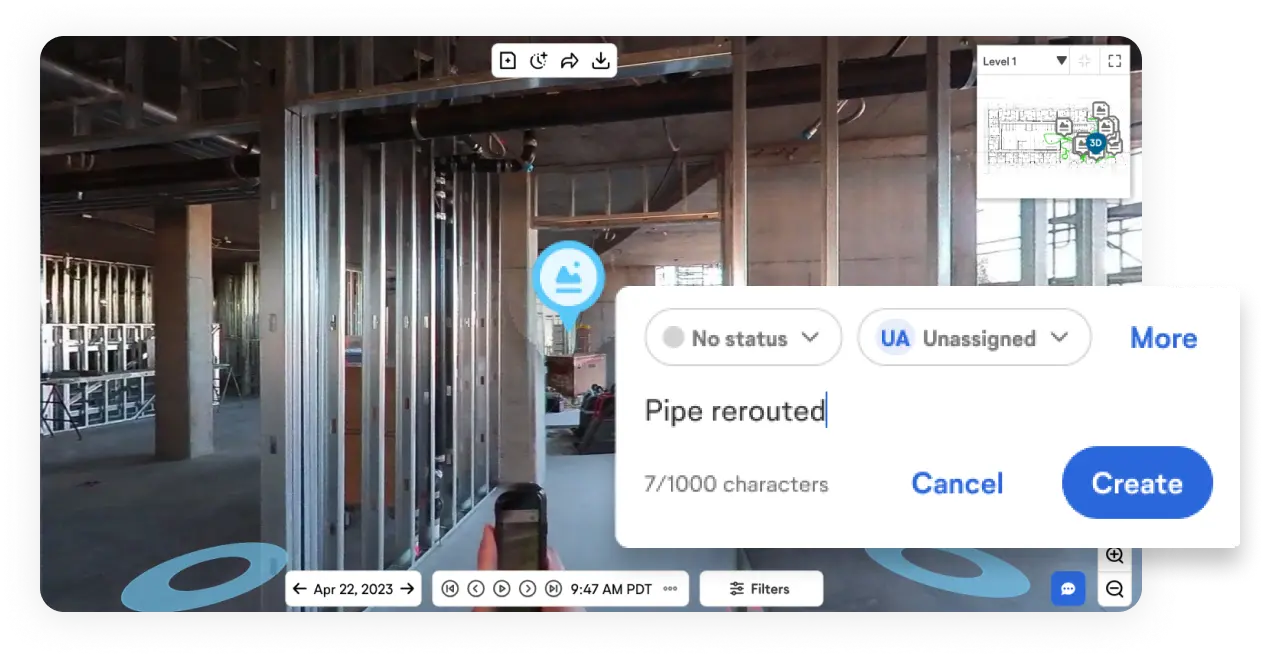
Document issues during a 360° site walk without disrupting your capture. Snap a photo in the mobile app, add details like descriptions, markups, attachments, and due dates—or dictate details with AI Voice Notes. OpenSpace automatically timestamps and pins every note to the right spot on your plan, so it’s easy to find later.
On-site with your mobile device
Not conducting a 360° capture? No problem. Create Field Notes anytime on your smartphone. Snap a photo, then AI Autolocation suggests your position. Speak instead of typing with AI Voice Notes—we’ll take your words and fill in key details. Create ACC Issues or Procore Observations and Punch List items in OpenSpace with Integrated Field Notes. Two-way sync keeps everything aligned in both places—no double entry. Use My Field Notes to see everything assigned to you in one place.
From your desktop
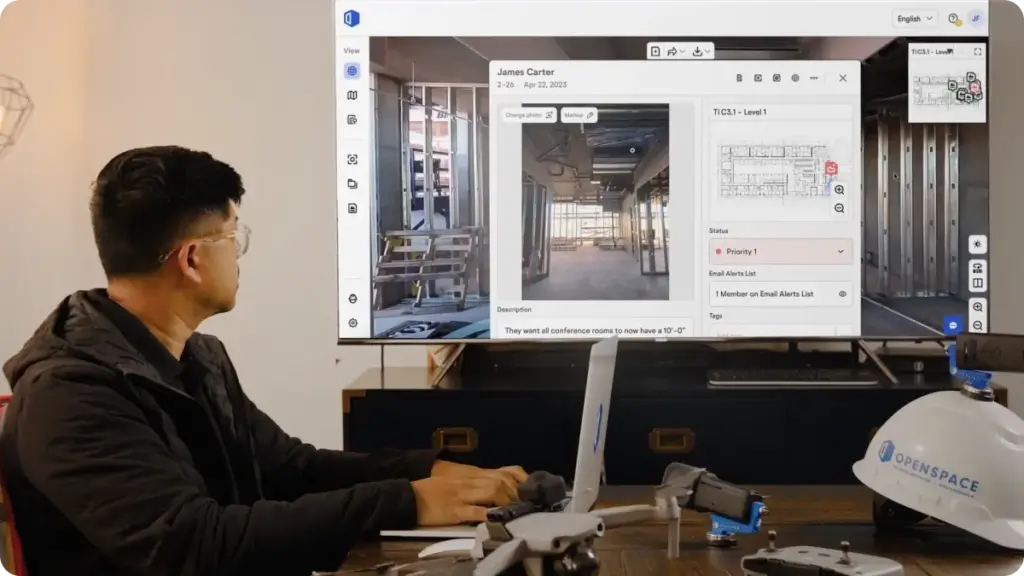
No need to be at the jobsite to create Field Notes—add them to a published capture anytime in OpenSpace from your desktop. Navigate to your capture and click the Field Note icon to start. Add details including text, images, assignee, and email alerts. Your new Field Note displays on your capture right where you created it.


Interested in learning more?
“We used to stick blue painter’s tape on punch items and enter each one into a spreadsheet. Field Notes have eliminated that tedious process entirely. Our final walks have only 10% to 15% of the items they would otherwise have—since we handle all the simple ones with Field Notes.”
Field Notes for powerful image-based workflows
Leading subcontractors, GCs, and owners use Field Notes to improve documentation and collaboration—perfect for progress photos, quality control, and safety. Eliminate back-and-forth email or phone conversations, and keep discussions in the context of specific issues, all in one place and saved to your floor plan. You can think of Field Notes as a way to bookmark critical areas that need to be addressed right away or discussed in a coordination meeting—quickly find your notes to access the details you need.
Capture complete observations
Use Field Notes to capture and track issues, deficiencies, and safety concerns, right where the work happens. Two-way sync with Procore and Autodesk Construction Cloud (ACC) keeps systems aligned.
Call out missing rebar caps or damaged glass with photos, markups, comments, and clear ownership. Attach drawings, videos, marked-up photos, and submittals, and more—all organized in one place. The carousel gallery makes it easy to view, add, and update multiple images, videos, and attachments as conditions change.
Decrease pending RFIs
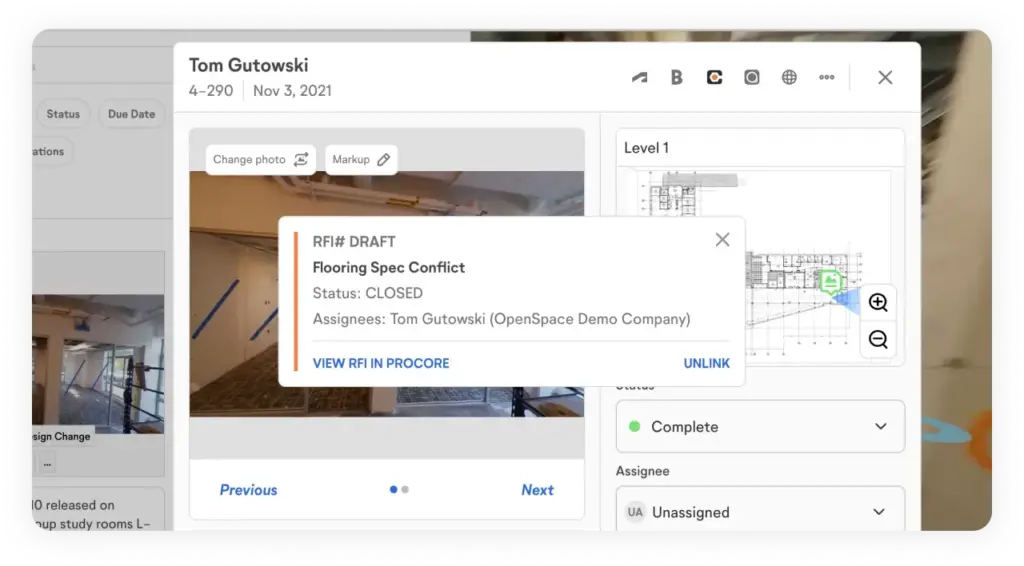
Use Field Notes to prevent pending RFIs from stacking up—you can quickly define RFIs in OpenSpace including relevant visual references. From exporting a Field Note, downloading an image, or creating a PDF report, you have everything you need for the design team. For faster response time, provide a link to the exact location in the 360° capture so the design team can view the area in question.
Create & close punch lists faster
Carrying around 11×17 sheets during a punch walk and trying to figure out where to add markers and notes on the floor plan can be stressful—especially with multiple people calling out items. For a faster, more organized process, create Field Notes in the OpenSpace mobile app as you walk.
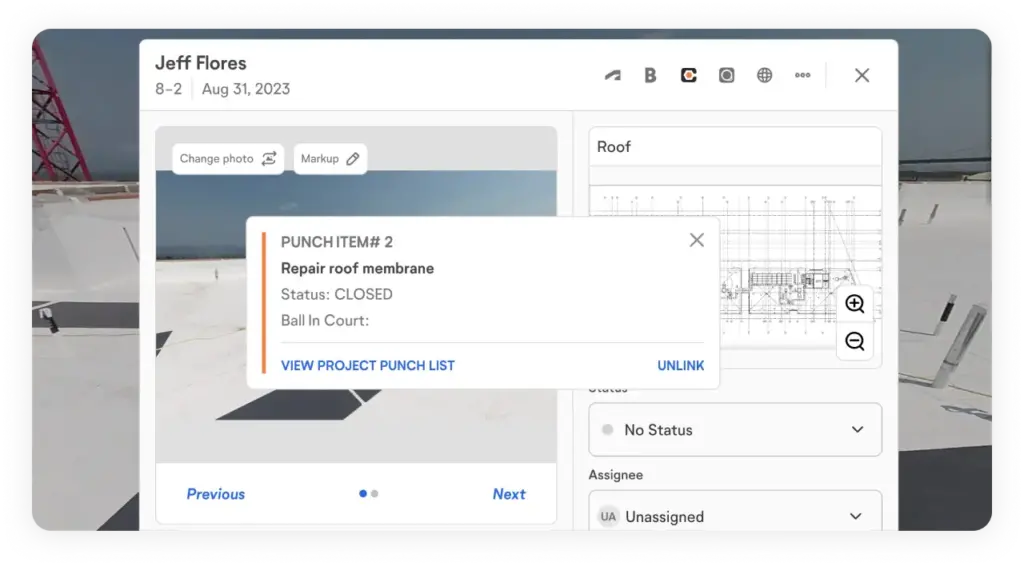
Faster coordination in the field
Assign Field Notes and add email addresses for anyone who should receive alerts when a Field Note is created or edited, keeping everyone up to date on important changes. Set a status (including custom statuses) and add tags that make it easy to organize notes by scope of work and points of interest. With Zones in Field Notes you can categorize notes by areas of your project like rooms and sectors or by phases that match your schedule—notes are automatically tagged to their corresponding Zones. Field Notes are rich with data, making it easy and fast to filter and find what you need.
Save time with integrations
Create and manage Procore Punch List Items and Observations and ACC Issues directly in Field Notes. Both systems stay in sync. Automatically.
Need to start from an existing workflow? Create Procore RFIs from Field Notes, or link Field Notes to existing Procore RFIs and Observations. Similarly, BIM 360, Build, and PlanGrid users can create or link ACC Issues and RFIs to Field Notes.
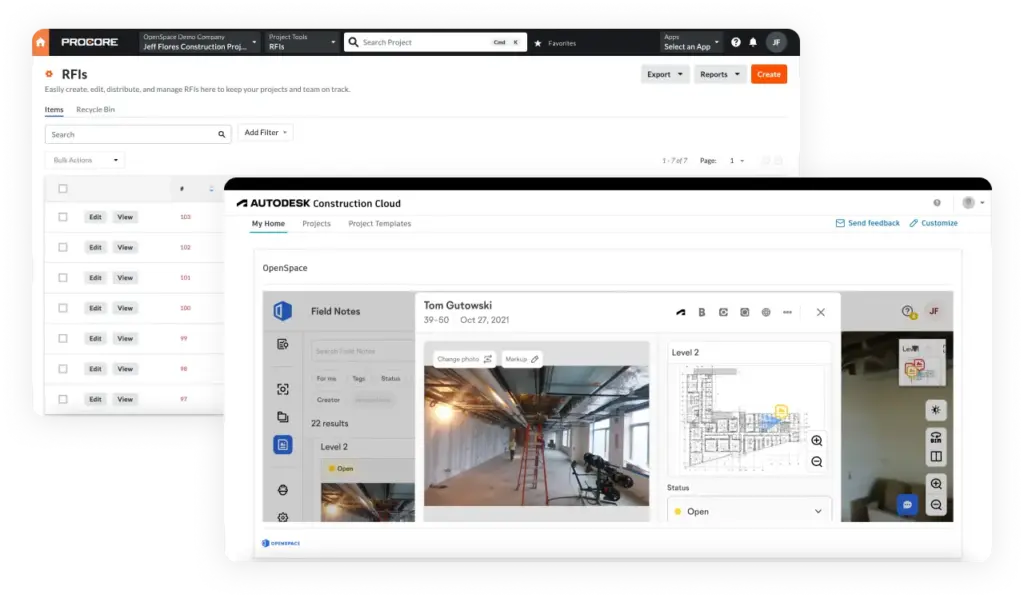
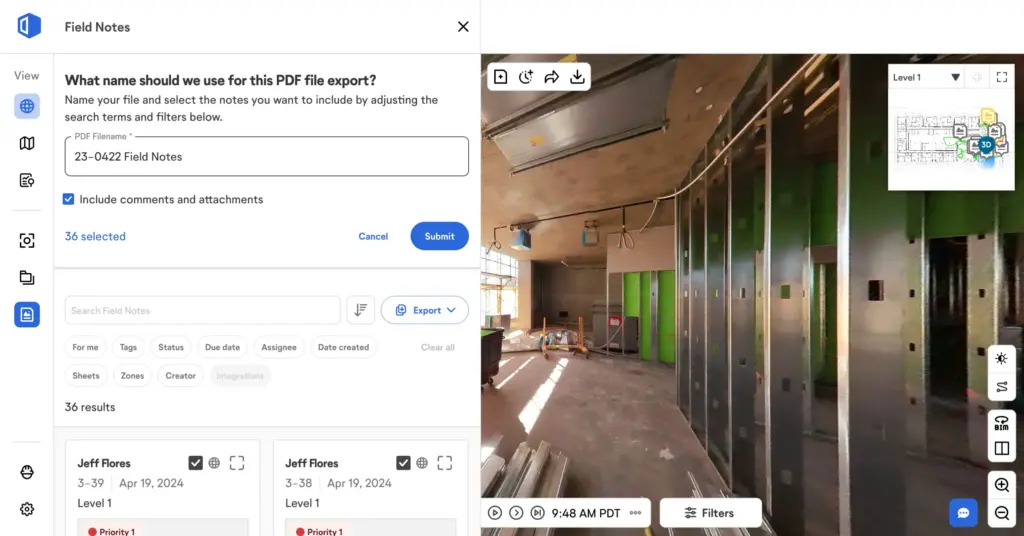
Keep everyone up to date with shareable reports
In the app or on your desktop, generate PDF reports complete with a cover photo and your notes automatically pinned to the top of your floor plan. Distribute to architects, subcontractors, or other stakeholders to get everyone on the same page and flag any action needed for the responsible parties. Customize your reports by status, assignee, date, Zones, tags, and more with just a few clicks. When you run a report from desktop, you can include all comments and attachments from your Field Notes for complete context.
The unmatched efficiency of Field Notes—it’s all in the details
Status
Set a priority level, mark complete, and more. Create custom labels that align with how you work.
Email alerts list
Set a priority level, mark complete, and more. Create custom labels that align with how you work.
Tags
Label Field Notes with tags you define (e.g., Architectural and HVAC). Tags enable smart searching and reporting.
Zones
Set a priority level, mark complete, and more. Create custom labels that align with how you work.
Due date
Assign a due date to your note and avoid missed deadlines. Reminders go to members on your email alerts list.
Attachments
Attach files like shop drawings, submittals, and marked-up images to help explain an issue or comment.
Photo markup
Call attention to a detail or issue on your photo by adding text, shapes, and more.
Description
Add any text that helps describe the image or issue.
Comments
Communicate and collaborate with time-stamped conversations in your note.
Assignee
Select the individual responsible for resolving a Field Note—they’ll be added to the email alerts list.
PDF reports
Export a selection of Field Notes in a nicely packaged PDF to share with owners, subs, or anyone.
Field Note PDF
Quickly share a single PDF of a Field Note from the mobile app.
Gallery
Save time with the gallery image carousel: view, add, and update multiple images, videos, and attachments.
Filters
Use filters like status, Zones, and tags to quickly find Field Notes to identify and resolve issues.
Bulk edits
In the desktop list view, filter Field Notes by a tag and bulk update status in one click.
Integrations
Field Notes integrations with Procore, BIM 360, Autodesk Build, and PlanGrid simplify your tasks.
BIM Compare Field Notes
Available in (OpenSpace BIM+). Call out a discrepancy of on-site conditions, including the image and the model, for faster issue resolution.
BCF export
Available in (OpenSpace BIM+). Export multiple BIM Compare Field Notes to a BCF file and import them as issues into your BIM coordination tool.